Customer notifications and the tracking page
6 steps5 min readUpdated
Every Afi Planner order gets its own tracking page with a live ETA, and customers hear from you by email (included), SMS through your own Twilio account or WhatsApp through your own WhatsApp Business account. Tell customers when to expect you without picking up the phone.
In this guide
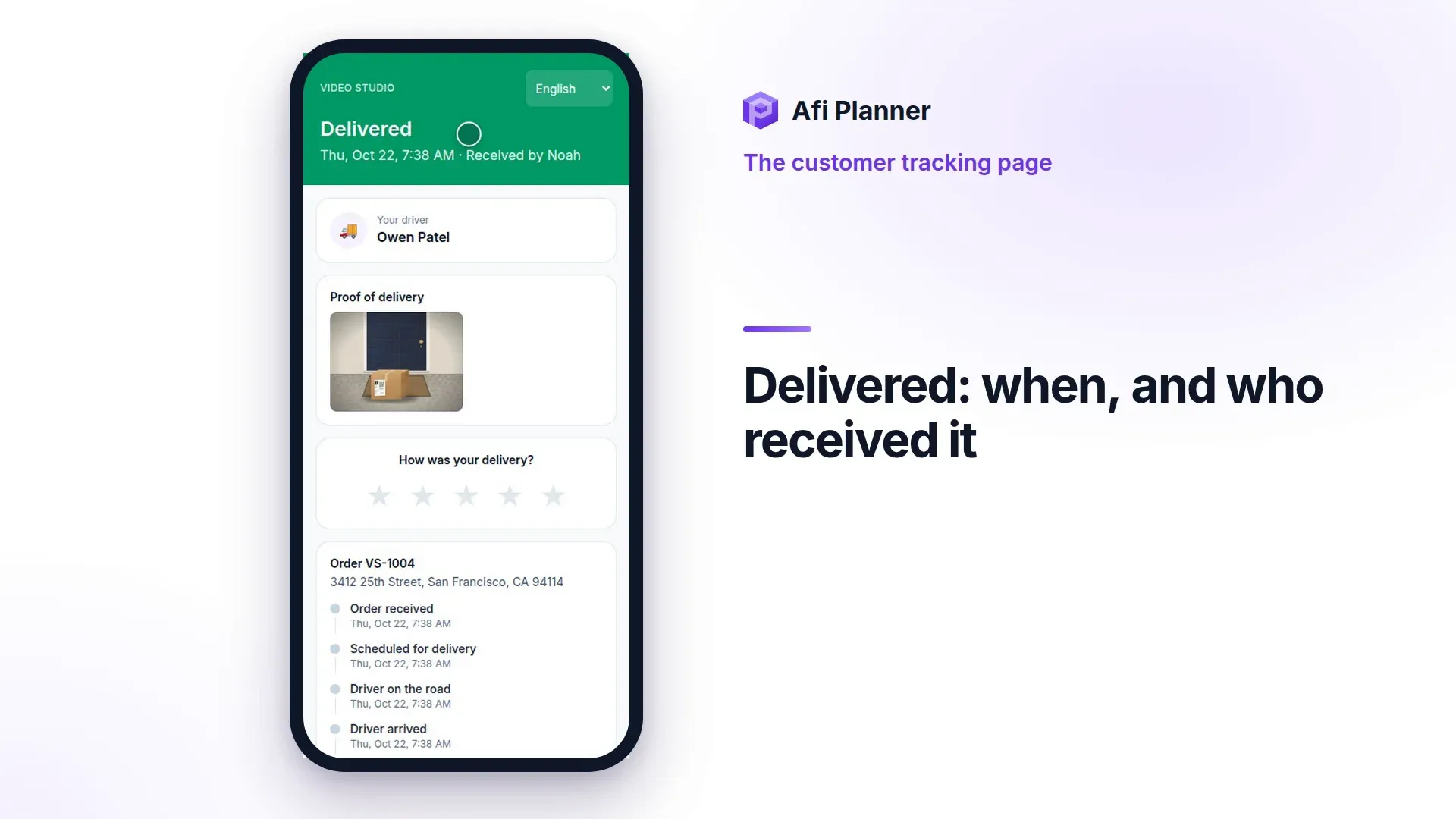
What this video shows
What a customer sees: the driver on the way, the arrival time, every step, who received it and a rating.
- What does your customer see?
- Customers see their driver on the way.
- Arrival time, and the van on the map.
- Every step of the order, as it happens.
- Then: delivered, and who received it.
- And a quick rating, in one tap.
Step 1: Choose your messages
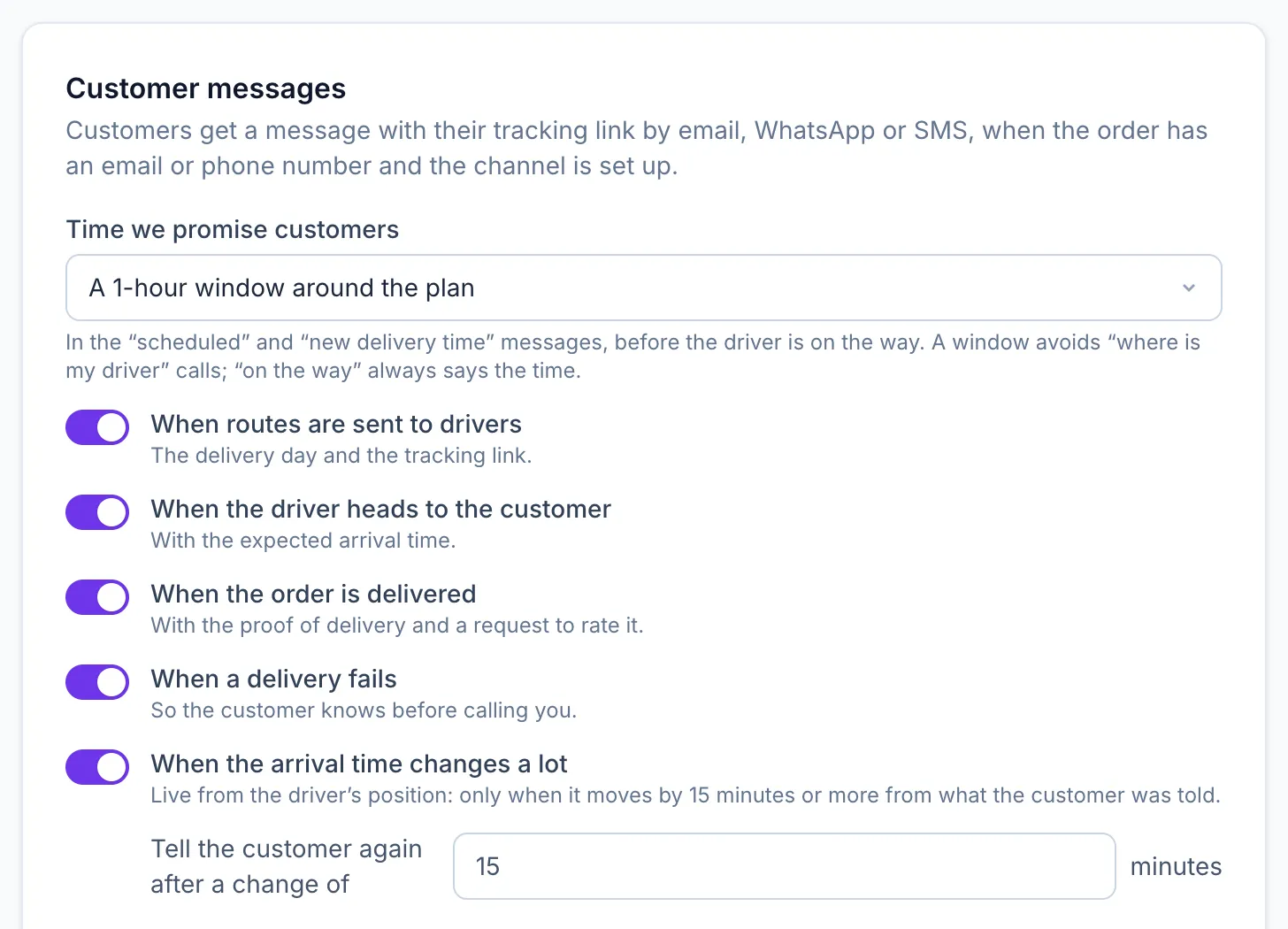
In Settings → General → Customer messages, switch on the messages you want: scheduled, on the way, ETA changed, delivered and not delivered. On Settings → Customers, set your quiet hours (9 PM–8 AM by default) and check the preview of each text with its SMS segment count.
Step 2: Write your own wording
On Settings → Customers, click Edit wording to change the SMS text and the email subject and body of each message, in each customer language; the SMS preview shows how many segments it uses. WhatsApp keeps its approved templates.
Step 3: Connect SMS (optional)
Enter your Twilio Account SID, API key and sender, then send yourself a test. Email works without any setup.
Step 4: Set the promised window
Choose what customers are promised before the driver is on the way: a 1- or 2-hour window around the plan, or the order’s own time window.
Step 5: Share the tracking page
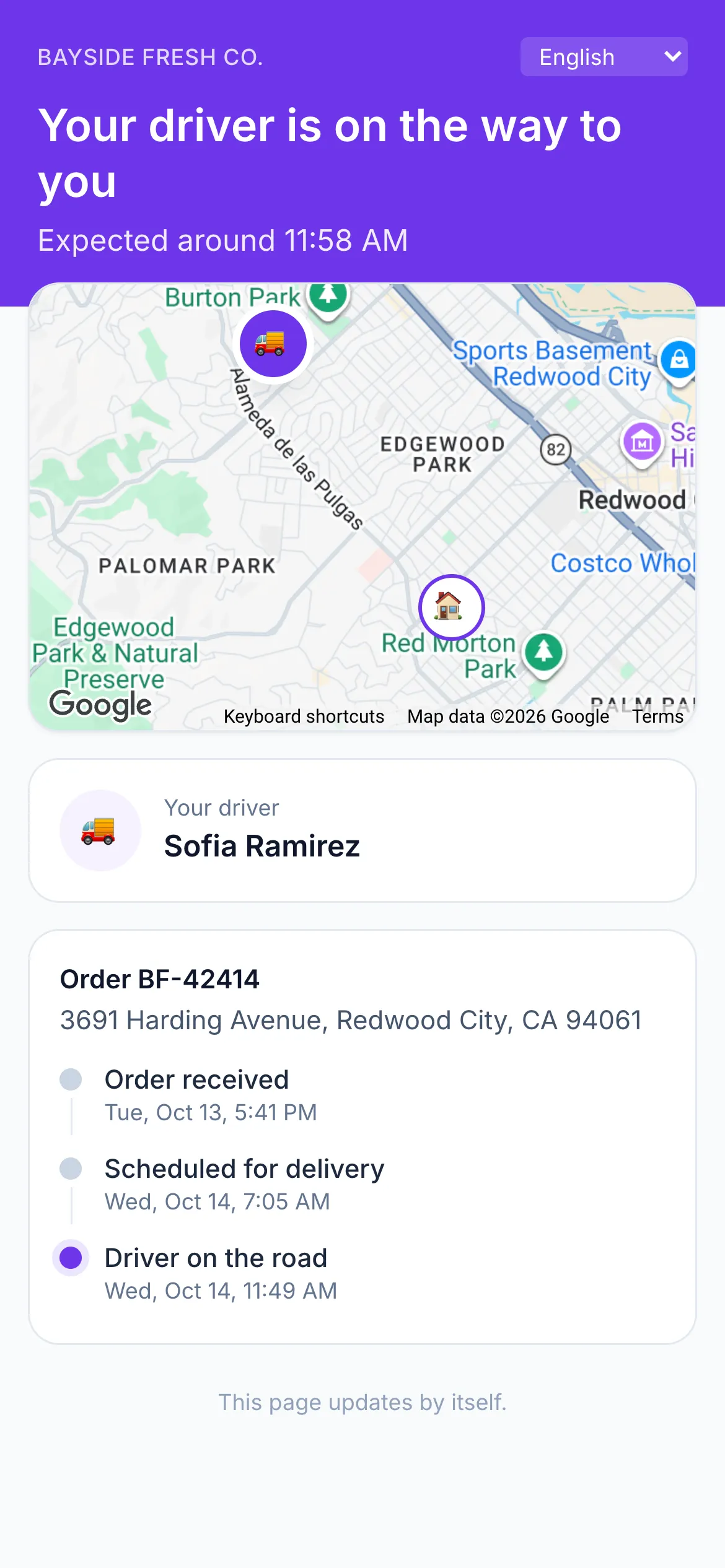
Every message links to the order’s tracking page with live status, ETA, the driver on the way and a rating after delivery. Once the driver is on the road, it says “Your driver is on the way · 3 stops before yours”, then “You’re next”. A driver still named like “Driver 1” shows as “Your driver”. To open or copy the page yourself, use Tracking page ↗ at the top of the order’s card.
Step 6: What customers can do on the page
Until the driver is on the way to them, customers can leave delivery instructions; afterwards they can rate the delivery and, after a failed delivery, ask for another day, which you approve or decline, instead of calling you. The driver’s position shows only while they are heading to that customer.
Questions this guide answers
Related feature
Fewer “where’s my order?” calls →